


September 9/12/25 Tech Tips

Why Microsoft Edge is the browser you should be using.
Background:
With the recent surge in cloud-based applications, choosing the correct browser is an important decision. Whether on a computer or a mobile device, we access most of the things we need through our browser. Edge is starting to look like the browser everyone should be using.
Why has Edge become so popular in the last few years when it seemed to be slow out of the gate? One big reason is that it adopted the Chromium framework a couple of years ago. This is the same background framework that Chrome uses. This multiplied all the add-ons and extensions Edge could have, as well as sped up the browser significantly. Should you switch to Edge? It's up to you, but here are some possible advantages to pulling the trigger and making the switch!
Collections
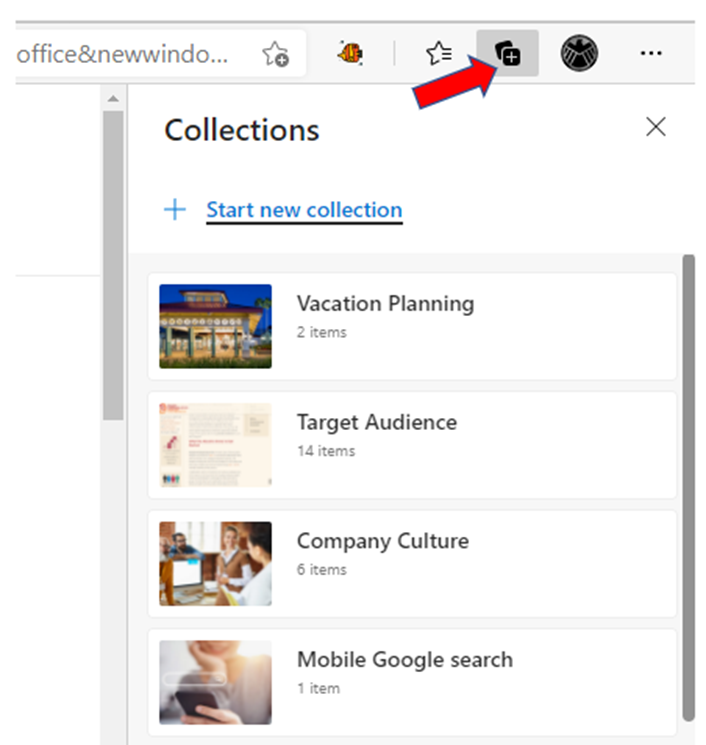
All browsers have some form of “favorites” or bookmarks to save webpage links. Unfortunately, these lists frequently become unorganized or confused as we add to them over time. Edge has a very useful feature called Collections. This allows you to save web pages in a sidebar and group them by topic. For example, you could create a topic called "Case #101 Research" and then save all the web pages from your work research inside.
To help you remember what you put into the collection, Edge takes an image and creates an icon that you may recognize as you look through everything. To access your collections, you only need to click the "+" at the top right of your browser. Collections are also easy to delete once you’ve finished with them. Unlike bookmarks, they won't add up endlessly. It becomes a much more manageable and efficient system.
For more information see the image below.
Copilot
Microsoft Edge has launched Copilot Mode, an innovative feature that integrates AI capabilities directly into the browsing experience. This mode allows users to interact with an AI assistant that understands the content on the page and can help with tasks such as summarizing information, answering questions, and providing recommendations based on open tabs. This feature aims to streamline browsing and enhance productivity by anticipating user needs and simplifying navigation.
See the image below for more information:

Enhanced PDF Management
Edge now includes improved tools for managing PDFs, such as Copilot Summarization, which quickly recaps key points in PDF documents. Users can also utilize the Read Aloud feature to listen to PDF content, making it easier to consume information on the go.

Coupons
You no longer need to add an extension or add-on to scan for coupons. Edge will automatically scan for potential coupons or deals wherever you are shopping. It will then feed you a pop-up with potential coupon options that you can choose to accept or deny. This built-in process ensures that even shopping online becomes more streamlined.
See the image below for more information.

Price Comparision
Another way that Edge helps you get the best deal when shopping online is through its pricing history and price comparison information. If you’re shopping on a website and the product that you’re viewing is cheaper on another site, Edge will let you know. It’s also going to provide you with a price history so you can see if this product is at its highest or lowest price related to the site you’re viewing.
This is very handy for larger purchases or bulk purchases. Offices frequently utilize this feature, especially their office managers or secretaries.
See image below for more information:

Security Features
There are several built-in security features to help you avoid phishing sites with malware, as well as intrusive 3rd party advertising trackers. There is a feature that monitors your passwords and lets you know if any of them have been involved in a breach. You’ll also get Microsoft Defender SmartScreen protection that will let you know if a site has been flagged for using malware or phishing. They also updated recently to have an AI-powered shild to protect from scareware.
Google is sometimes criticized for its lack of privacy, and Microsoft is trying to capitalize on this by providing more security features than the internet giant. In Edge, you can choose from a variety of security levels to determine how much information sites can take for advertising purposes.

Web Capture for Quick Screenshots
It’s easy to take screenshots and mark them up in Edge. In the browser menu, you just choose Web Capture, which will allow you to drag a rectangle across the screen to capture an image. You can resize the rectangle to just capture what you need, and once you take the screenshot, it will ask if you want to leave any notes or comments on the image.
See the image below for more information:

I hope you have found these tech tips helpful! Please feel free to share these tips out or contact us with questions or comments.
Article used with permission from The Technology Press.


Comments